
GET STARTED WITH YOUR POD.
Attach your Pod, connect the LLume iOS app, and get ready for your first session.
You’ll need your LLume Pod, a heart-rate chest strap or the included LLume Strap, and your iPhone.
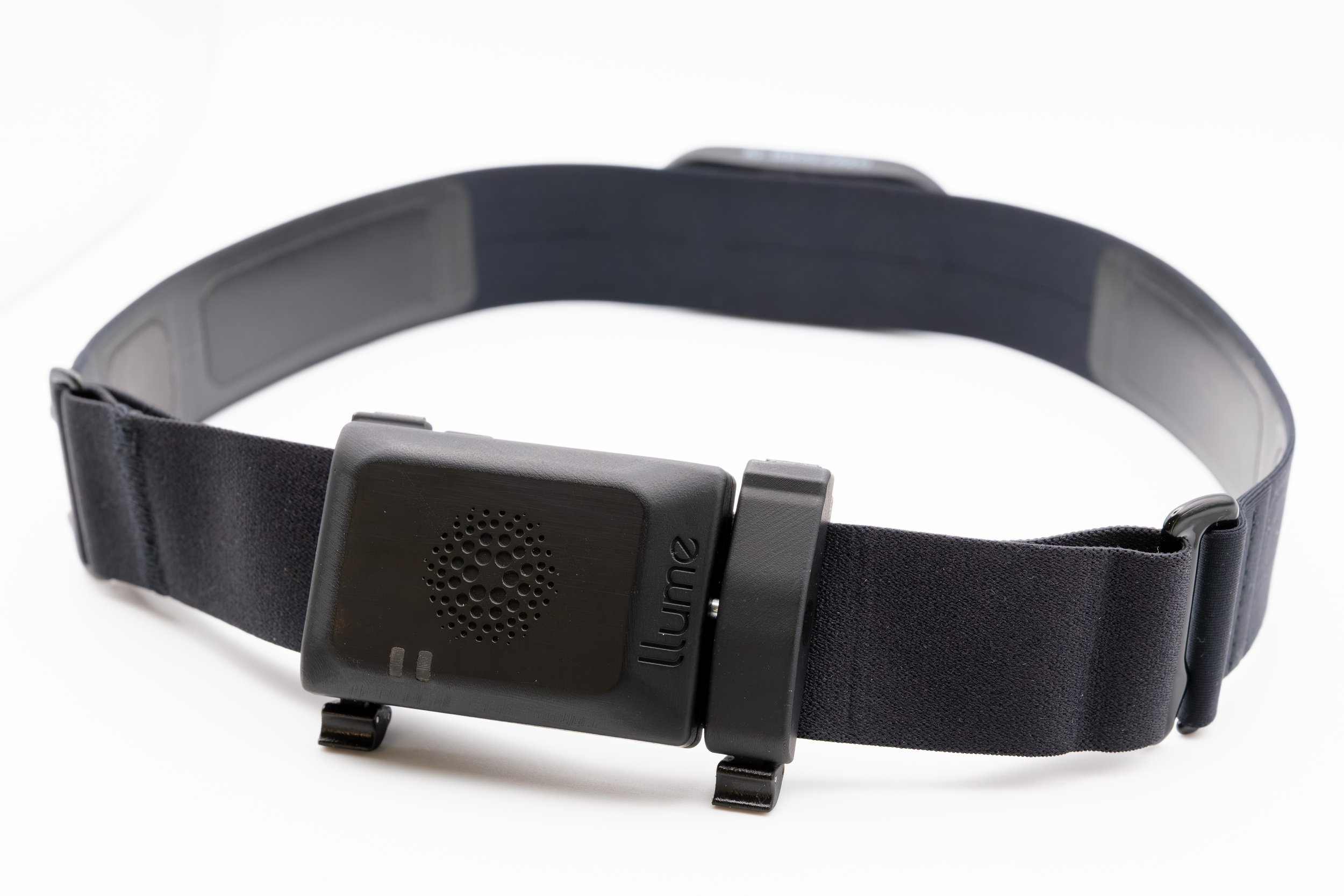
ATTACHING YOUR POD.
You can use your LLume pod with either the included LLume strap, or an HRM strap of your choice.
Watch the first tutorial for using it with a heart rate monitor.
Watch the second tutorial for using it with a LLume strap. When using with a LLume strap, skin contact is optional.
Adjust the strap for a snug, comfortable fit. Follow your heart-rate monitor’s wearing instructions for heart-rate tracking.
LLume Pod + Heart Rate Monitor Strap
LLume Pod + LLume Strap
LED INDICATORS
LLume Pod has two indicator LEDs, blue for connection state and red for charging.
KEEPING A CLEAR BLUETOOTH PATH.
How to reduce lag and improve connection stability
Bluetooth connection is required to view your metrics in real-time. If connection is lost, the data is stored on the LLume pod instead, and offloaded at the end of the session.
01 BEST PRACTICES
Bluetooth works best when your phone and pod have a clear line of sight.
Keep the pod on the same side of your body as your phone.
If your phone is in a back pocket, wearing the pod on your back helps.
Your body, walls, and nearby electronics can weaken the Bluetooth link.
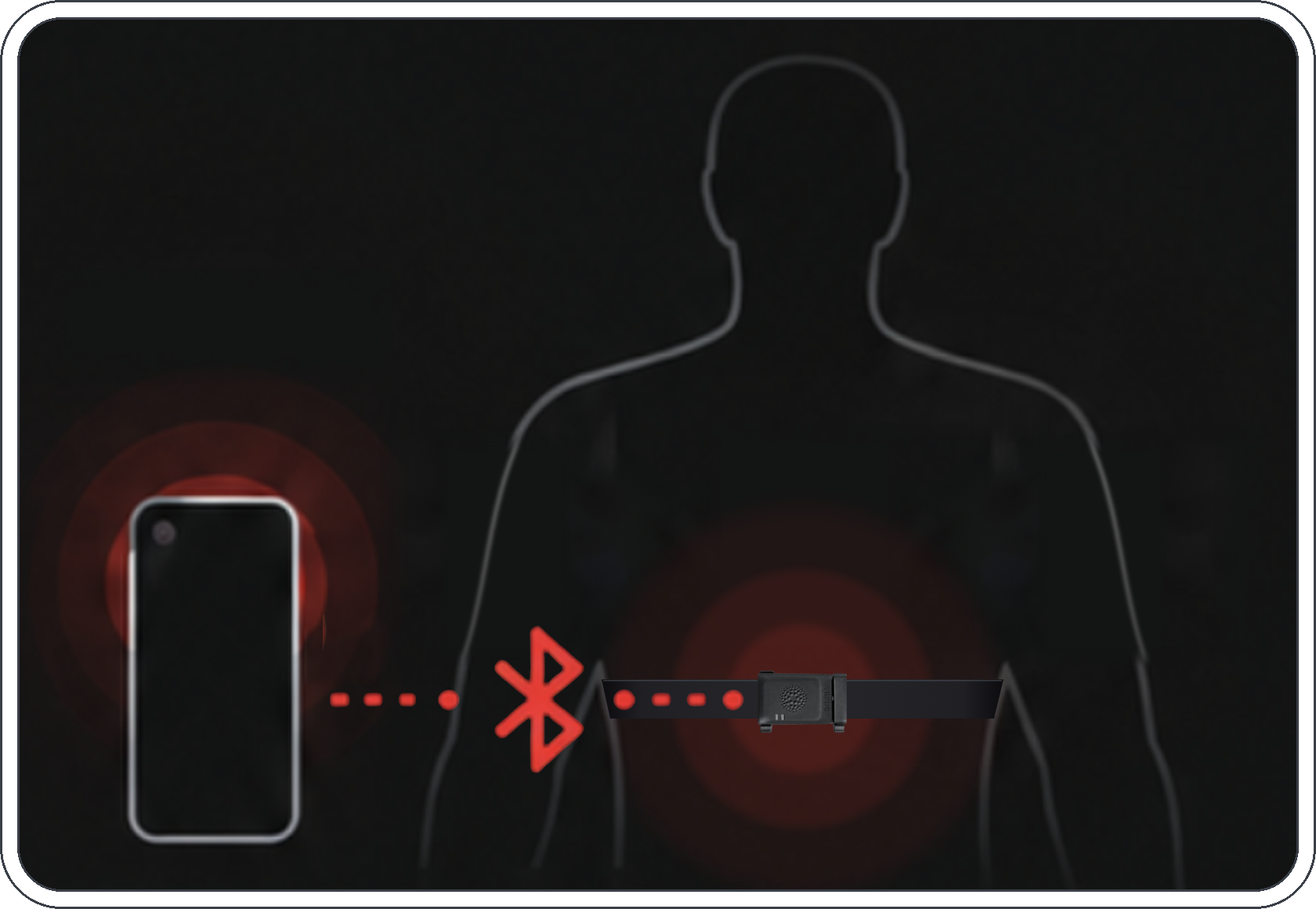
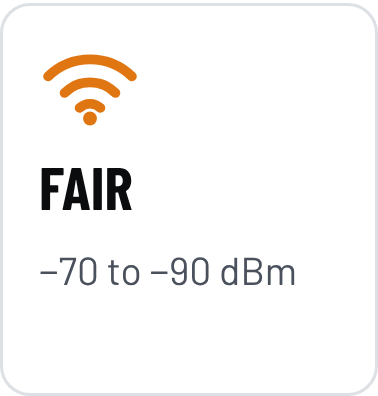
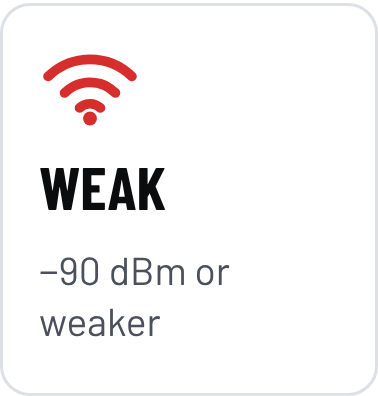
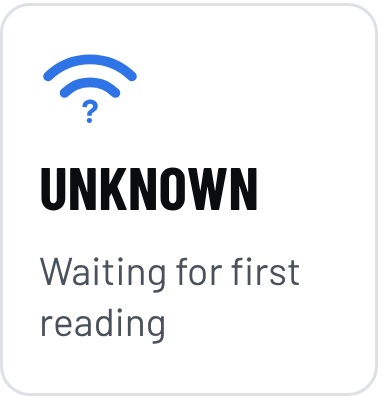
02 BLUETOOTH INDICATOR ON YOUR DEVICE CARD
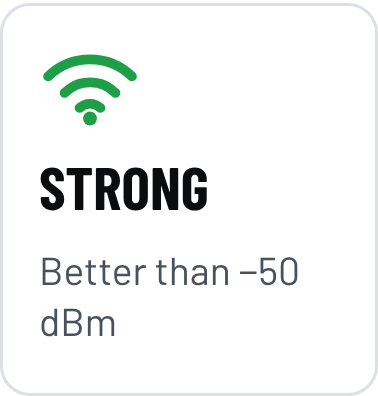
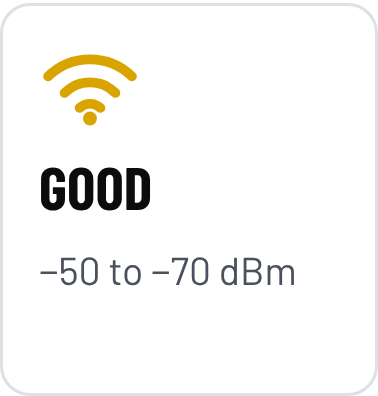
03 WEAK CONNECTION
Yellow, orange, or red: live visualizations may lag.
Near -95 dBm (red): a disconnect is possible.
RECONNECTING & OFFLOADING DATA
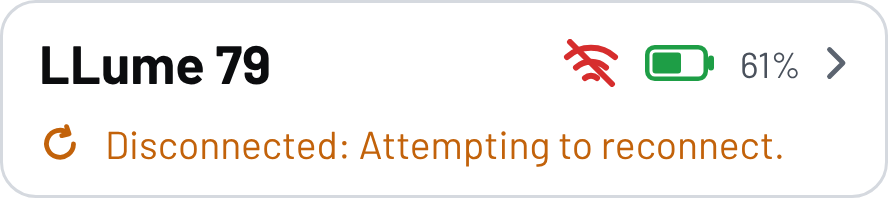
Disconnections can happen. Keep working out while the LLume pod catches up.
The pod stores data onboard when disconnected and transfers it when it reconnects.
DO NOT TERMINATE THE APP DURING TRANSFER
Keep the app running until the transfer is complete. Force-quitting or swiping the app away while it is catching up can cause offload issues.
01 CONTINUE THROUGH DISCONNECTIONS
You can keep working out for as long as you like. To reconnect, keep the app open and bring your phone near the powered-on pod.
DURING YOUR WORKOUT
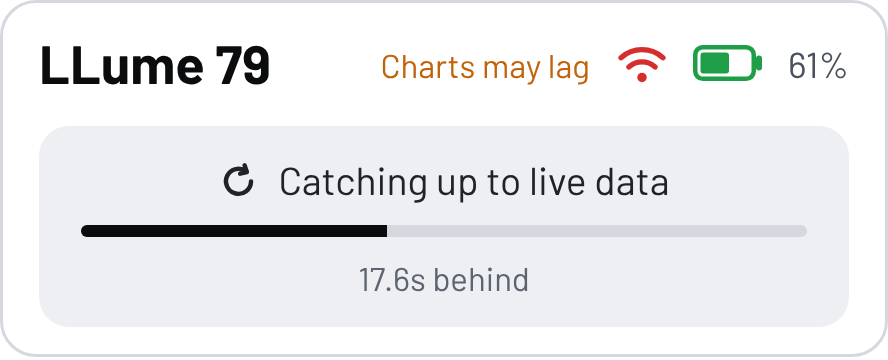
02 CATCH UP WITHOUT STOPPING
After reconnecting, the pod transfers stored data and tries to catch up to live data while you keep working out. This cycle can repeat throughout the workout if the connection is unstable.
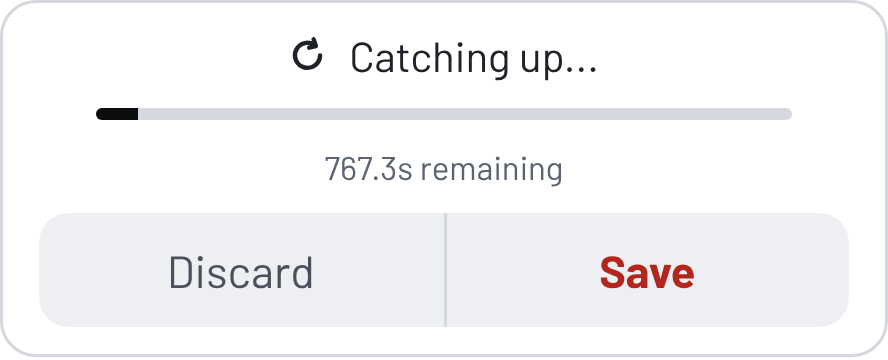
03 FINISH WHEN YOU CHOOSE
Tap Stop only when you are done, add your workout details, then tap Save. Saving does not mean the transfer is complete; offloading may continue on Home.
AFTER YOUR WORKOUT
04 CONFIRM THE TRANSFER IS FINISHED
Keep the app open and the pod powered on nearby until "Catching up..." and "Finishing last workout..." clear on Home. A green connection icon alone does not confirm completion.
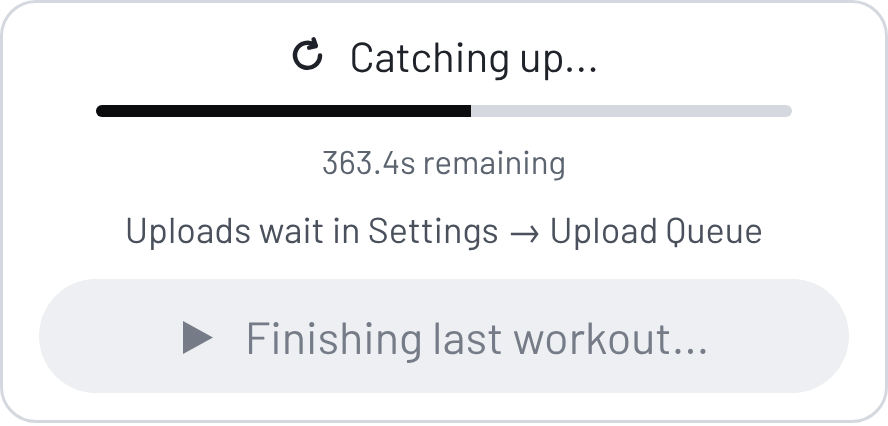
Status reminder: "Since last packet" is not a completion countdown. Check pending uploads in Settings → Upload Queue.